
Customize Error Messages for Required Questions
Make a Question Required
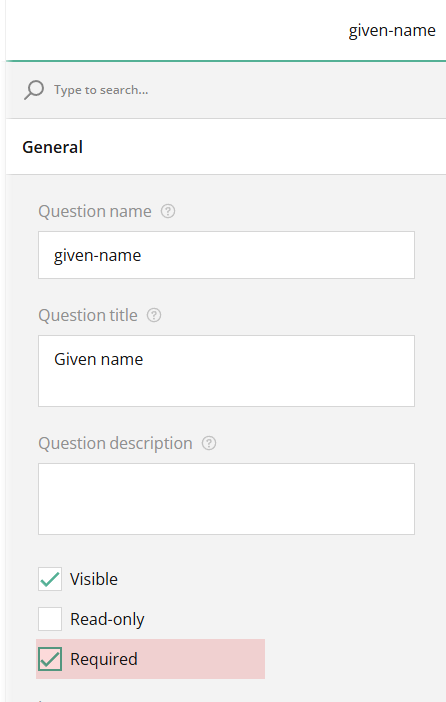
Questions can be made required unconditionally by selecting the Required property under the General category.
Make a Question Conditionally Required
Alternatively, you can make a question required conditionally by following these steps:
- Select the question you want to make conditionally required.
- Under the Conditions category, locate the Make the question required if property.
- Click the Magic wand icon to open a popup for condition configuration.
- In the popup, select the triggering element's ID (its Question name property value).
- Choose a condition from the drop-down menu, such as Empty, Not Empty, Equals, or Greater than.
- Enter or select the triggering value.
- Click Apply.
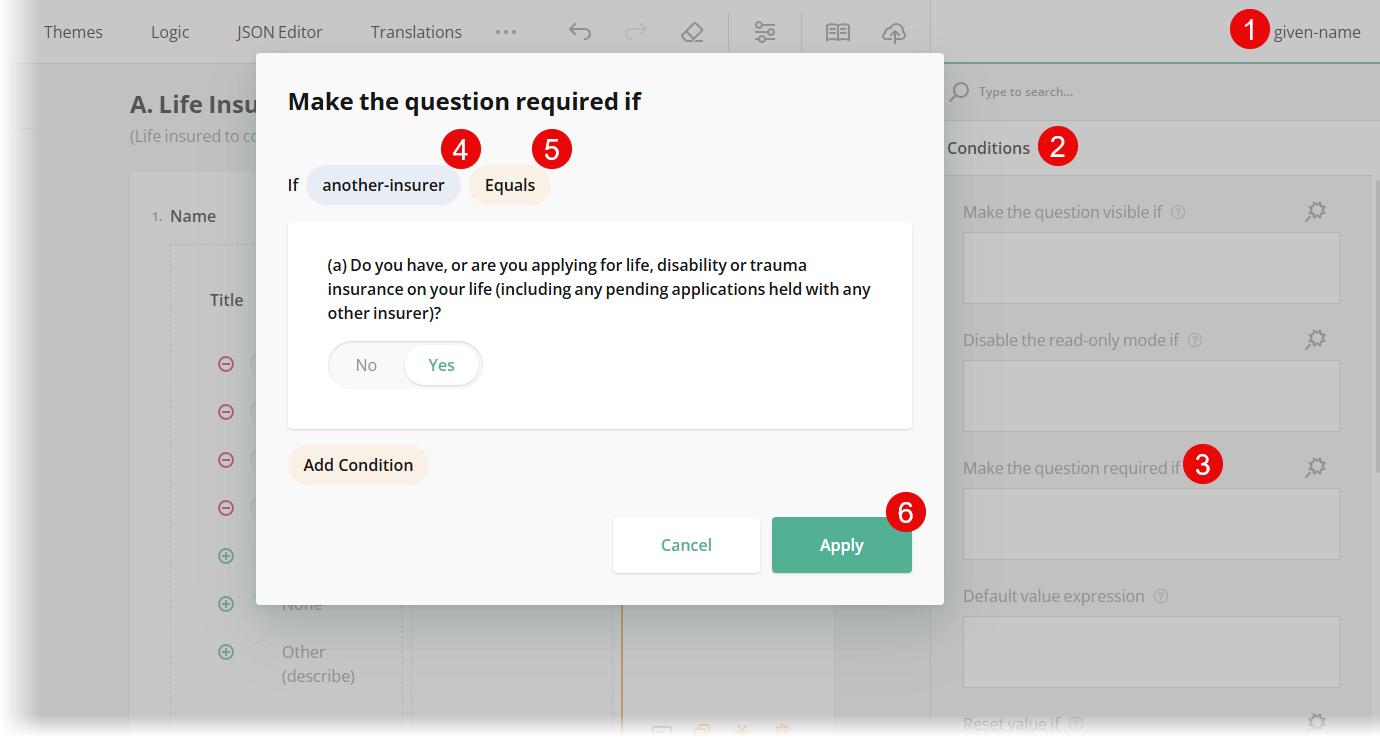
If the condition is met and a respondent attempts to skip the question without giving an answer, they will see an error message.
Specify a Custom Message for Required Question
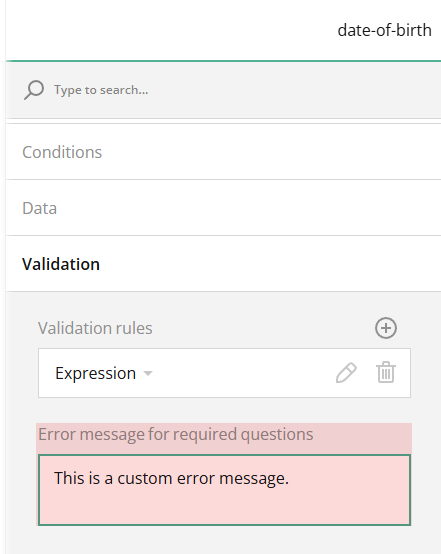
The default error message for required questions is "Response required." To customize this message for a specific question, follow the steps below:
- Select the question you want to customize.
- Under the Validation category, locate the Error message for required questions setting.
- Enter a new error message in the input field.
Customize Error Messages for Required Pages
You can prevent users from skipping a specific page by making it required. A required page ensures that respondents provide an answer to at least one question on it.
A page cannot be made required unless you specify a condition which will make it one when evaluated to true. To make a page of your survey conditionally required, follow these steps:
- Select the page you want to make required.
- Under the Conditions category, locate the Make the page required if property.
- Click the Magic wand icon to open a popup for condition configuration.
- In the popup, select the triggering element's ID (its Question name property value).
- Choose a condition from the drop-down menu, such as Empty, Not Empty, Equals, or Greater than.
- Enter or select the triggering value.
- Click Apply.
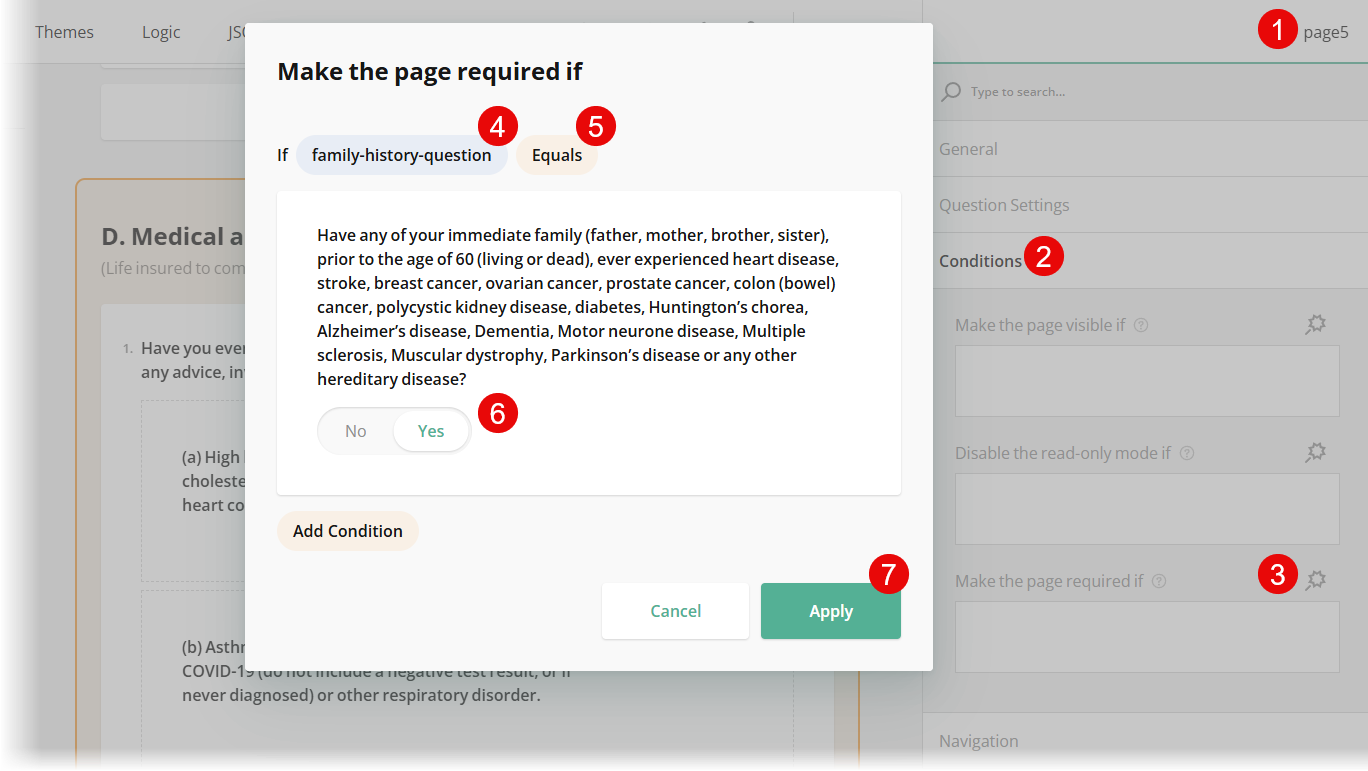
If the condition is met, and a respondent attempts to skip the page without answering at least one question, they will see an error message "Response required: answer at least one question.".