1. Adding Your Questions
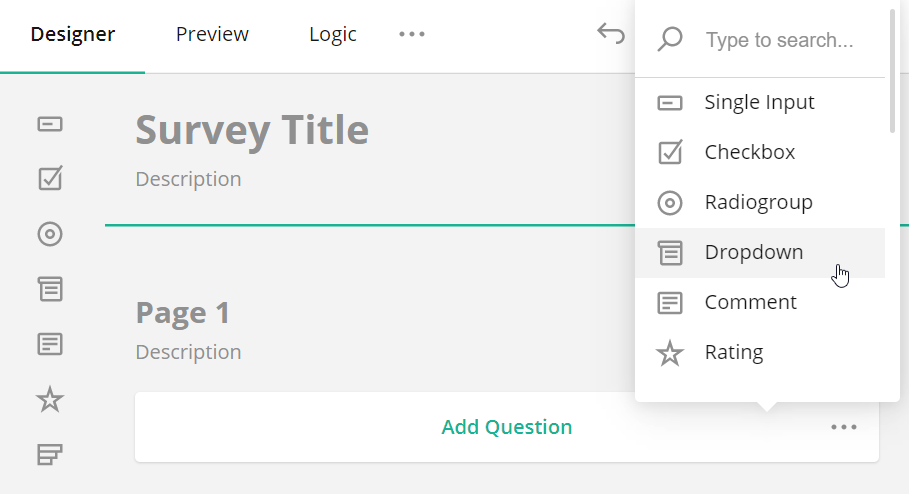
Drag and drop the desired question type from the Toolbox onto the design surface. Alternatively, you can click the Add Question button to add a Single-Line Input question. This button also displays an ellipsis icon that allows you to change the type of inserted questions.
How to: Specify default answers
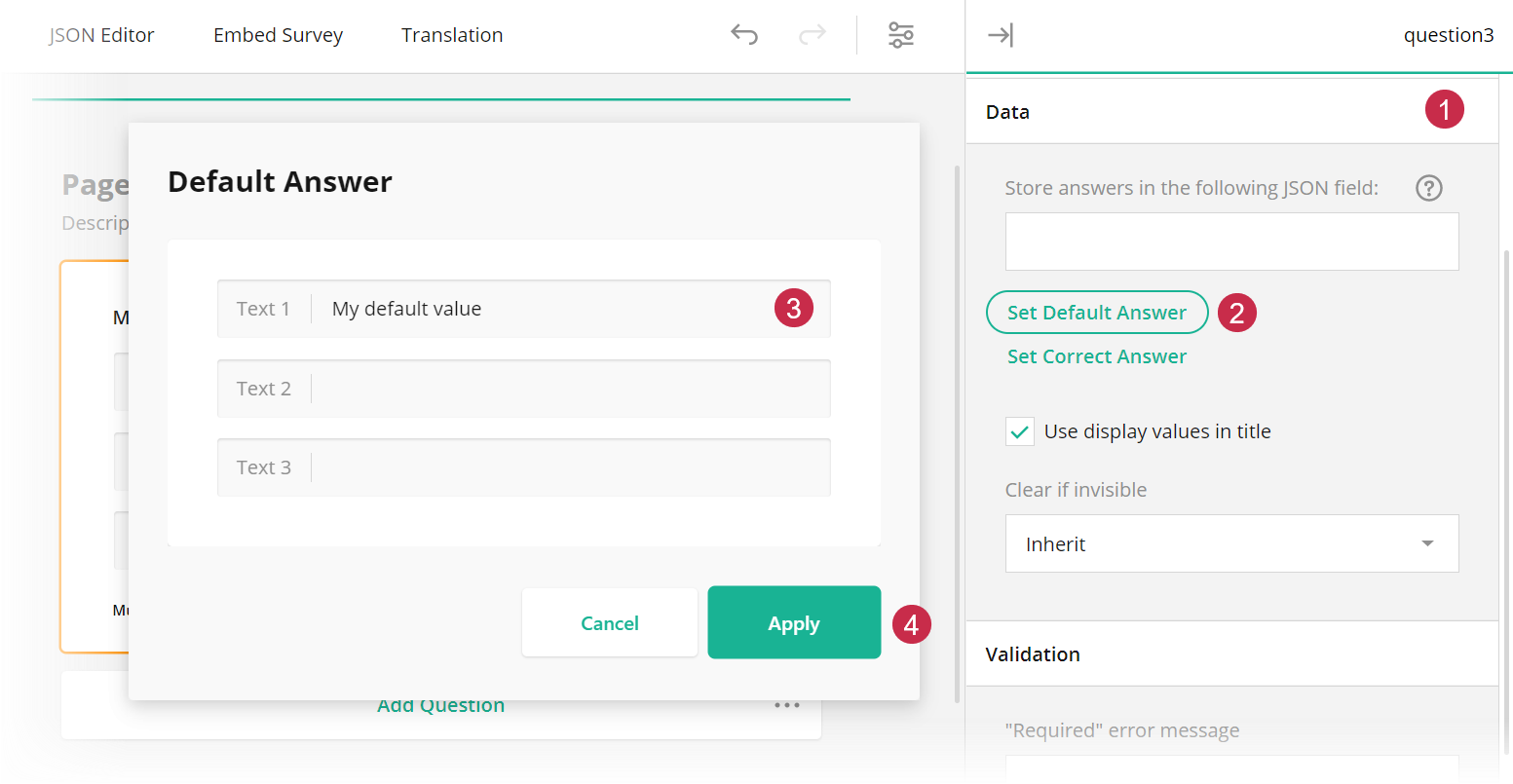
Expand the Data category and click Set Default Answer to open the Default Answer pop-up window. Enter or select the default answers and click Apply:
How to: Add an additional page to the form
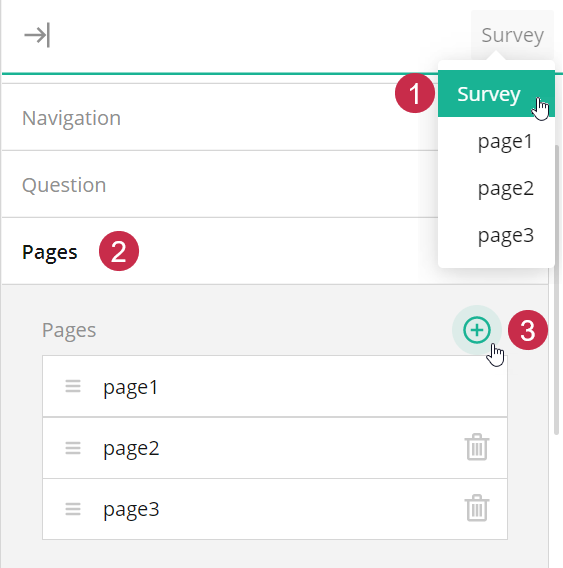
In the Property Grid, select Survey, expand the Pages category, and click the Add New button in the Pages editor:
Alternatively, you can add a page on the design surface. The surface displays the skeleton of a new page at the bottom. To add a new page, you need to add a question to it.
How to: Change the question type
Use the element type selector in the question:
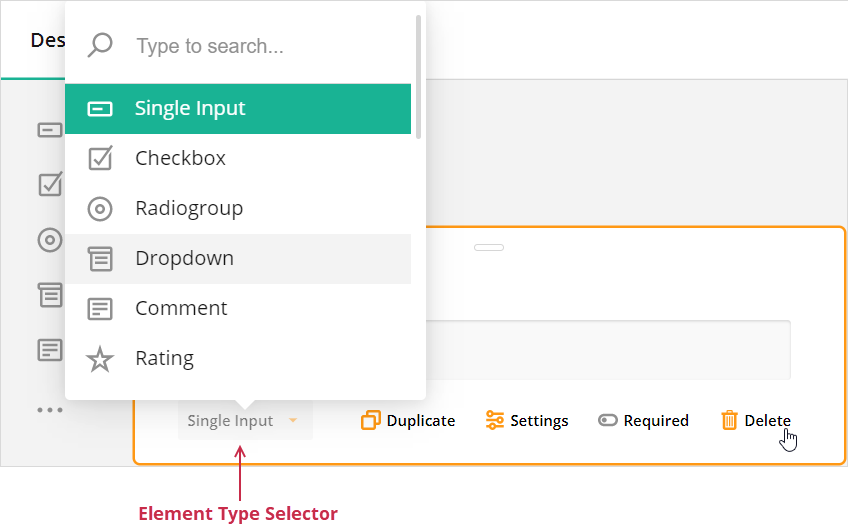
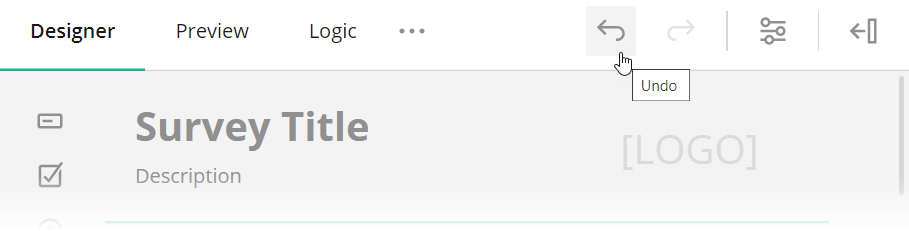
Some question types are non-interchangeable. For example, a Dropdown question supports choices, while Single-Line Input does not. If you switch the question type from Dropdown to Single-Line Input, your choices will be lost. In this case, you can click the Undo button to reinstate the previous configuration:
How to: Clear the Form
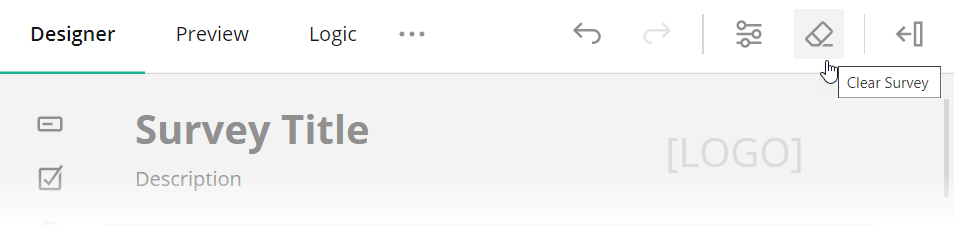
Click the Clear button on the Toolbar:
Question Types
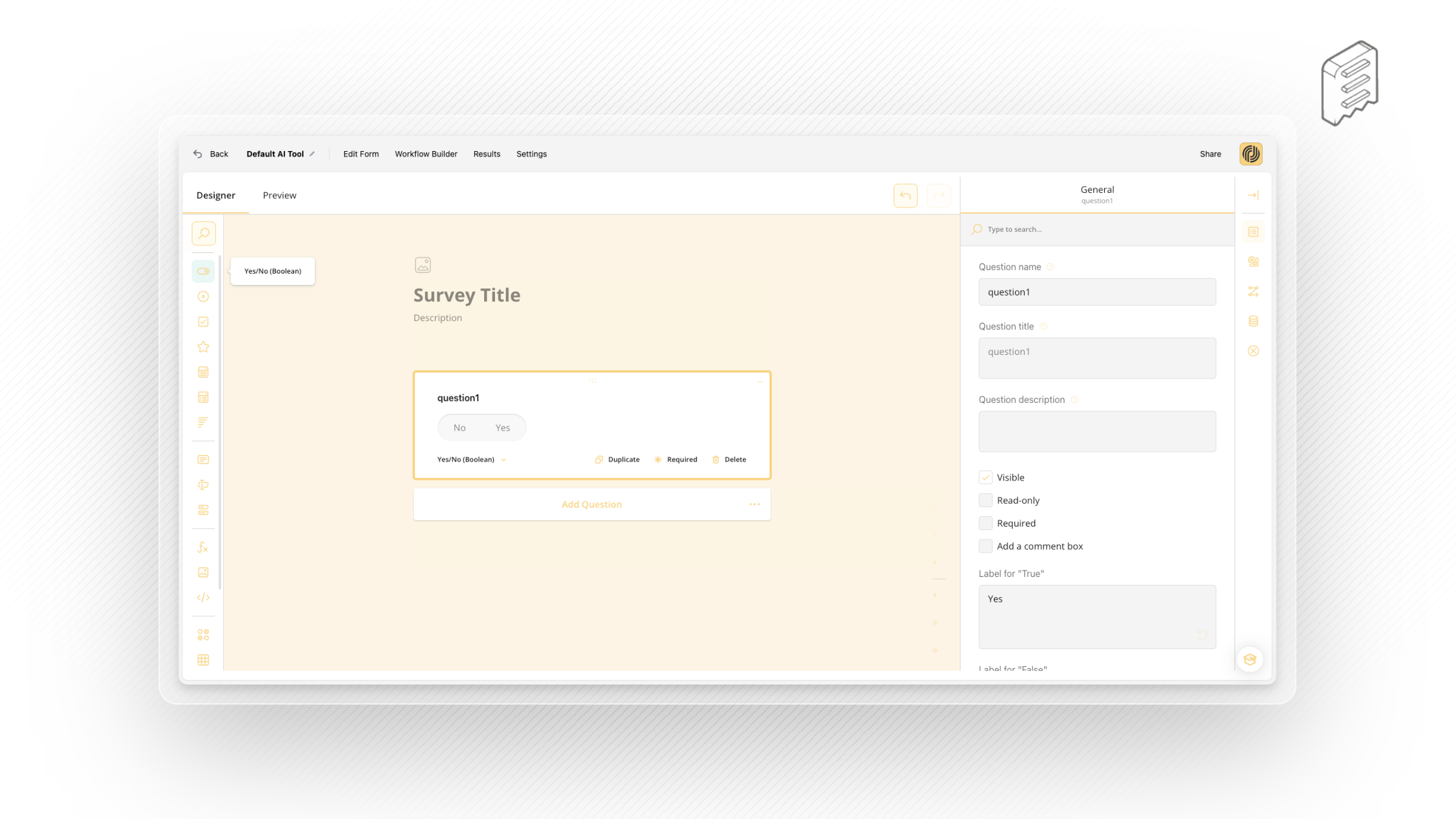
Yes/No (Boolean)
Respondents switch a Boolean editor to Yes or No. The response is saved in the survey results as true for Yes or false for No.
Radio Button Group
Respondents use radio buttons to select a single answer. Use the Radio Button Group type for questions that can have multiple options but accept only one answer.
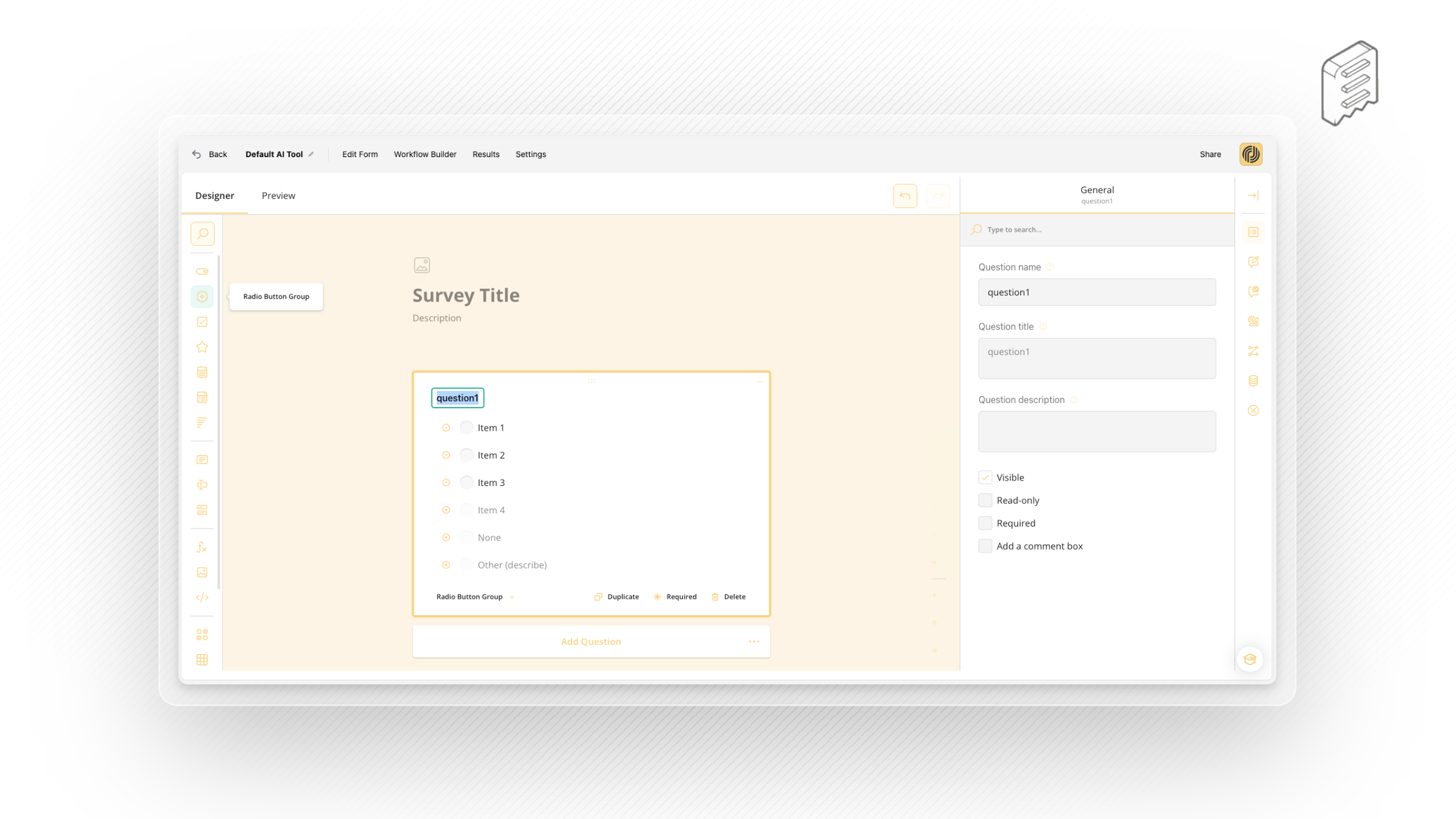
Checkboxes
Respondents click one or several checkboxes to select answers. Use the Checkboxes type for questions that accept multiple answers.
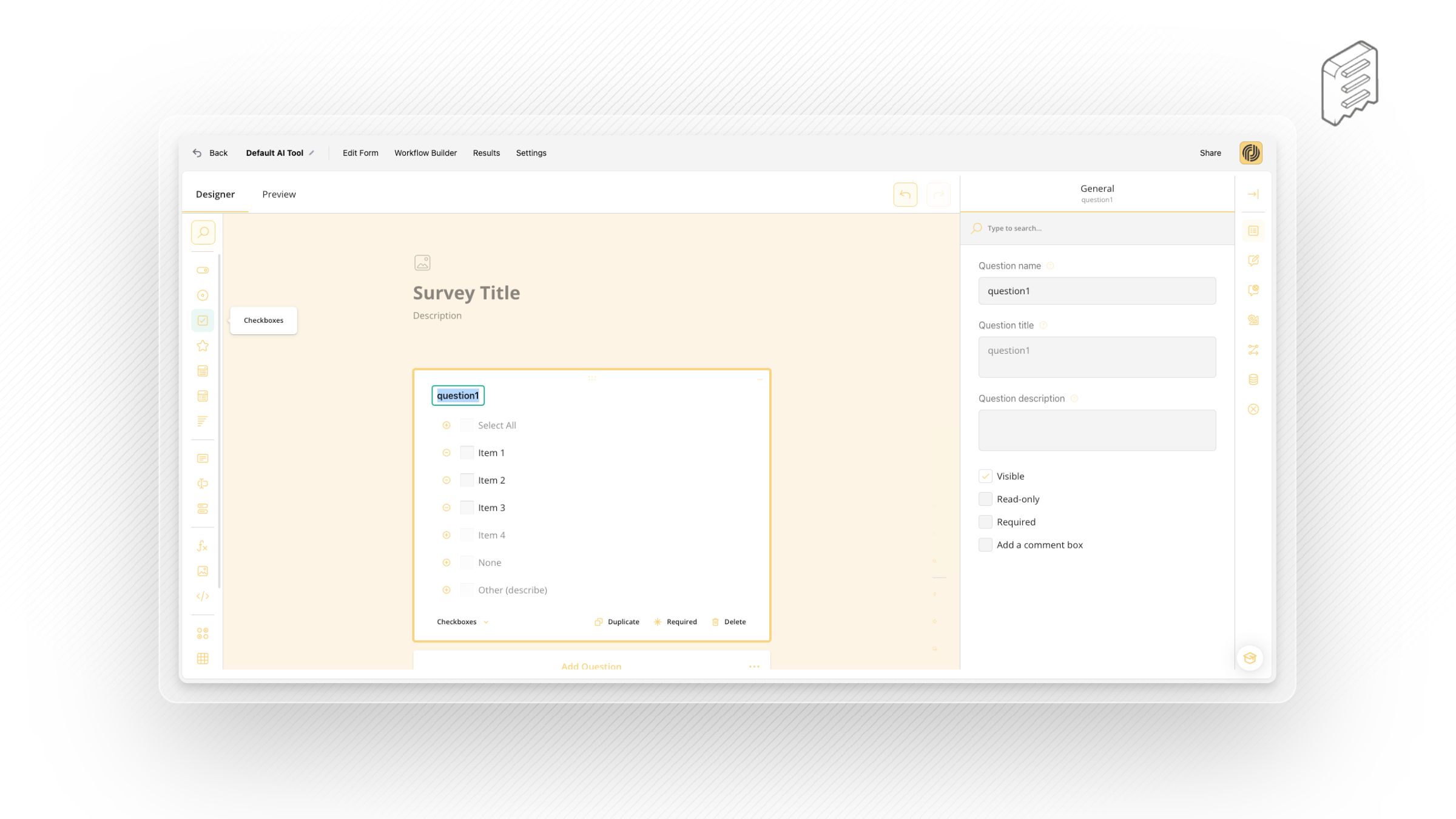
Rating Scale
Respondents select one number within a range. Use the Rating Scale type when you want respondents to enter a rating.
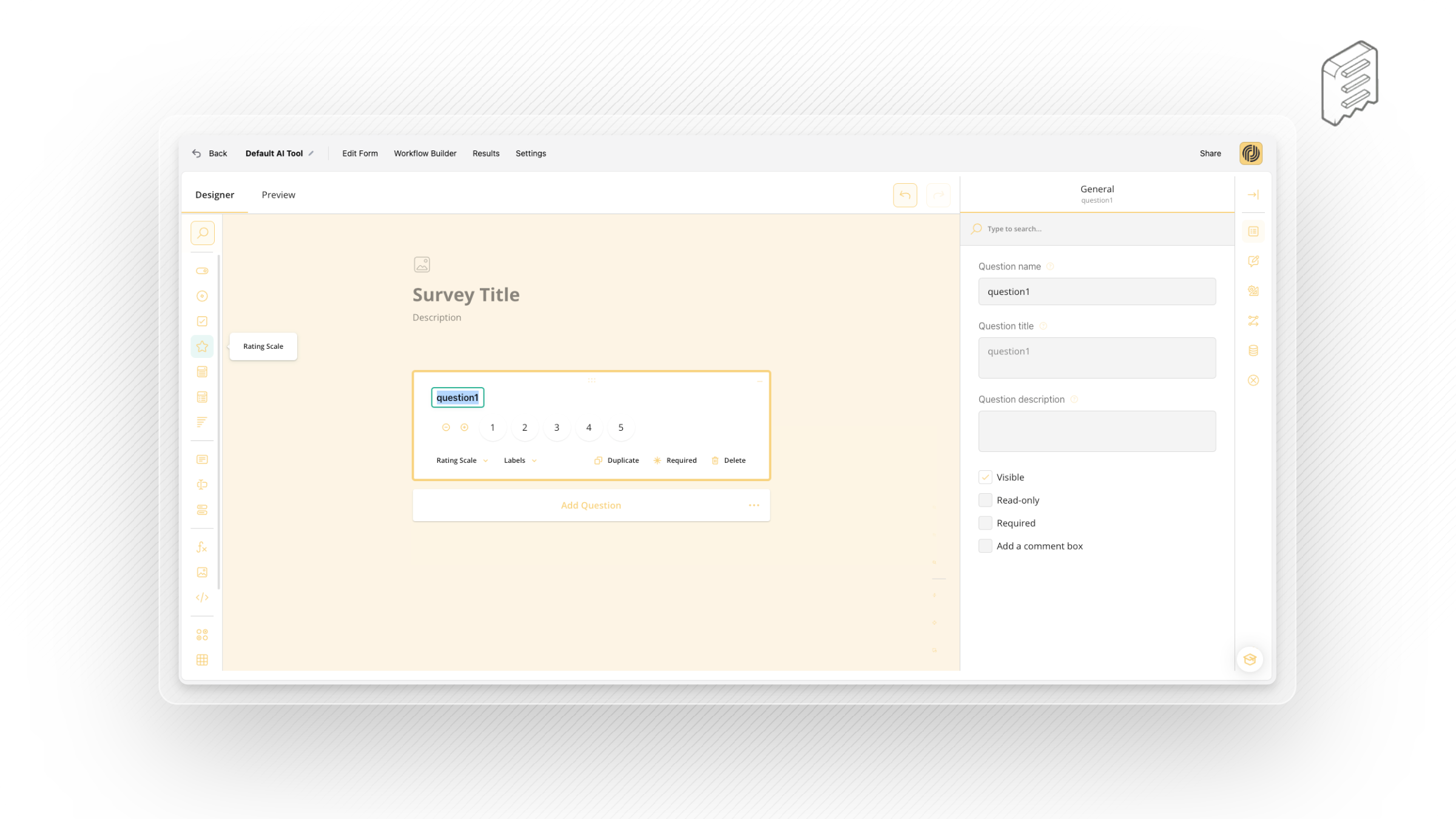
Dropdown
Respondents select a single answer from a drop-down list. Like the radio button group, the Dropdown type can be used for questions that have multiple options but accept only one answer. However, the Dropdown UI can display more options while occupying less screen space.
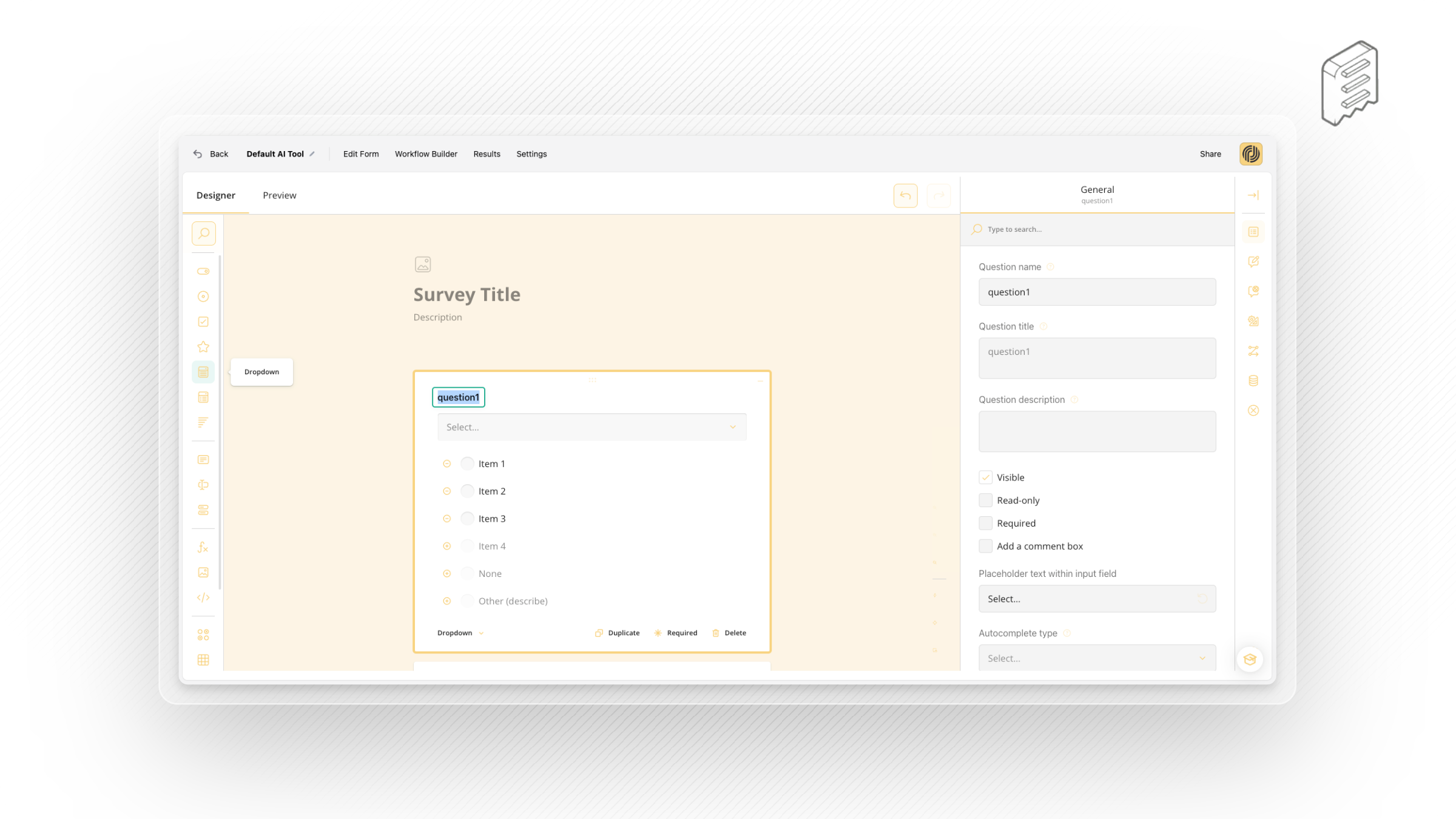
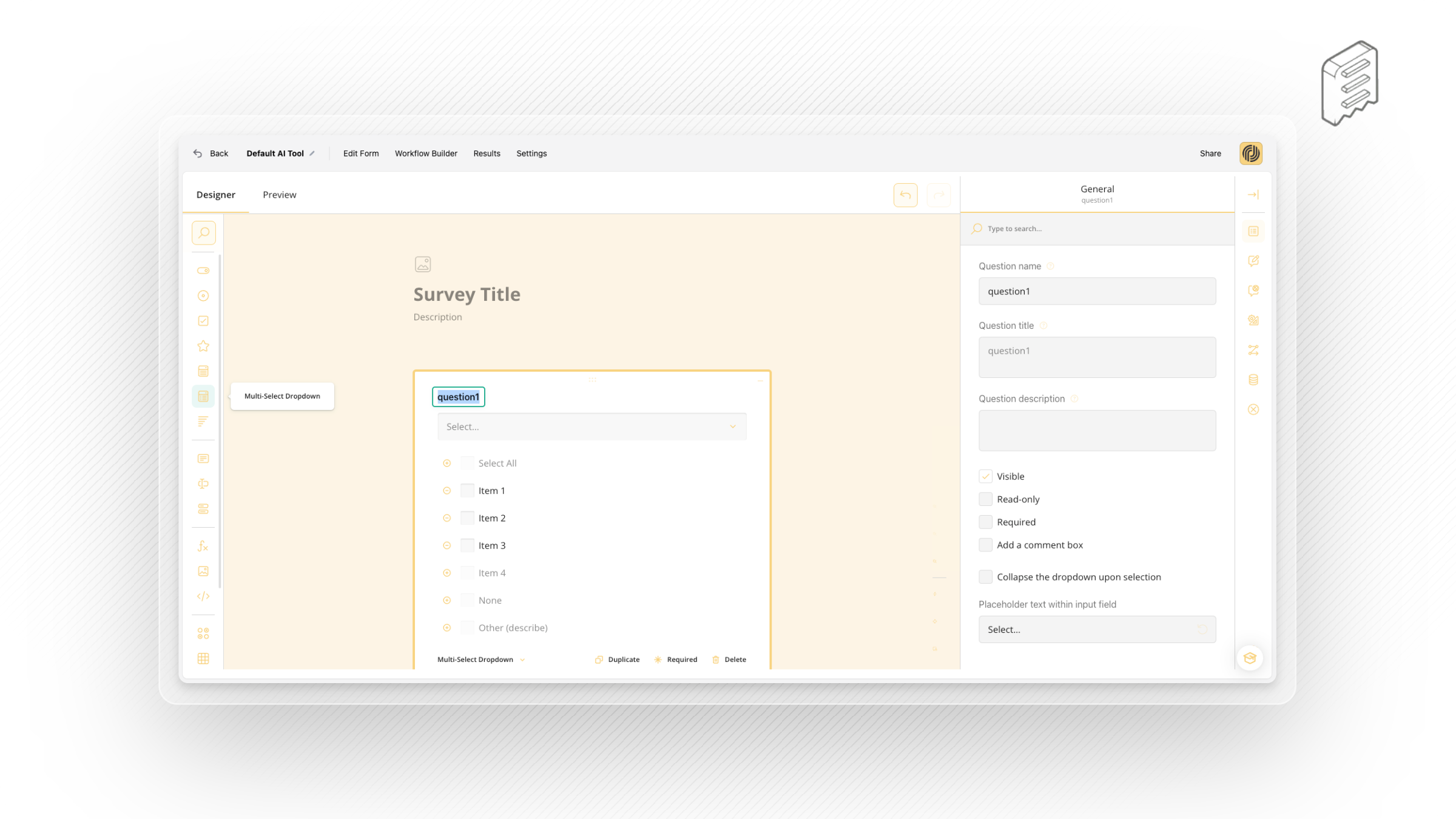
Multi-Select Dropdown
Respondents can select one or multiple answers from a drop-down list. Unlike a simple dropdown question type, Multi-Select Dropdown allows respondents to select more than one answer.
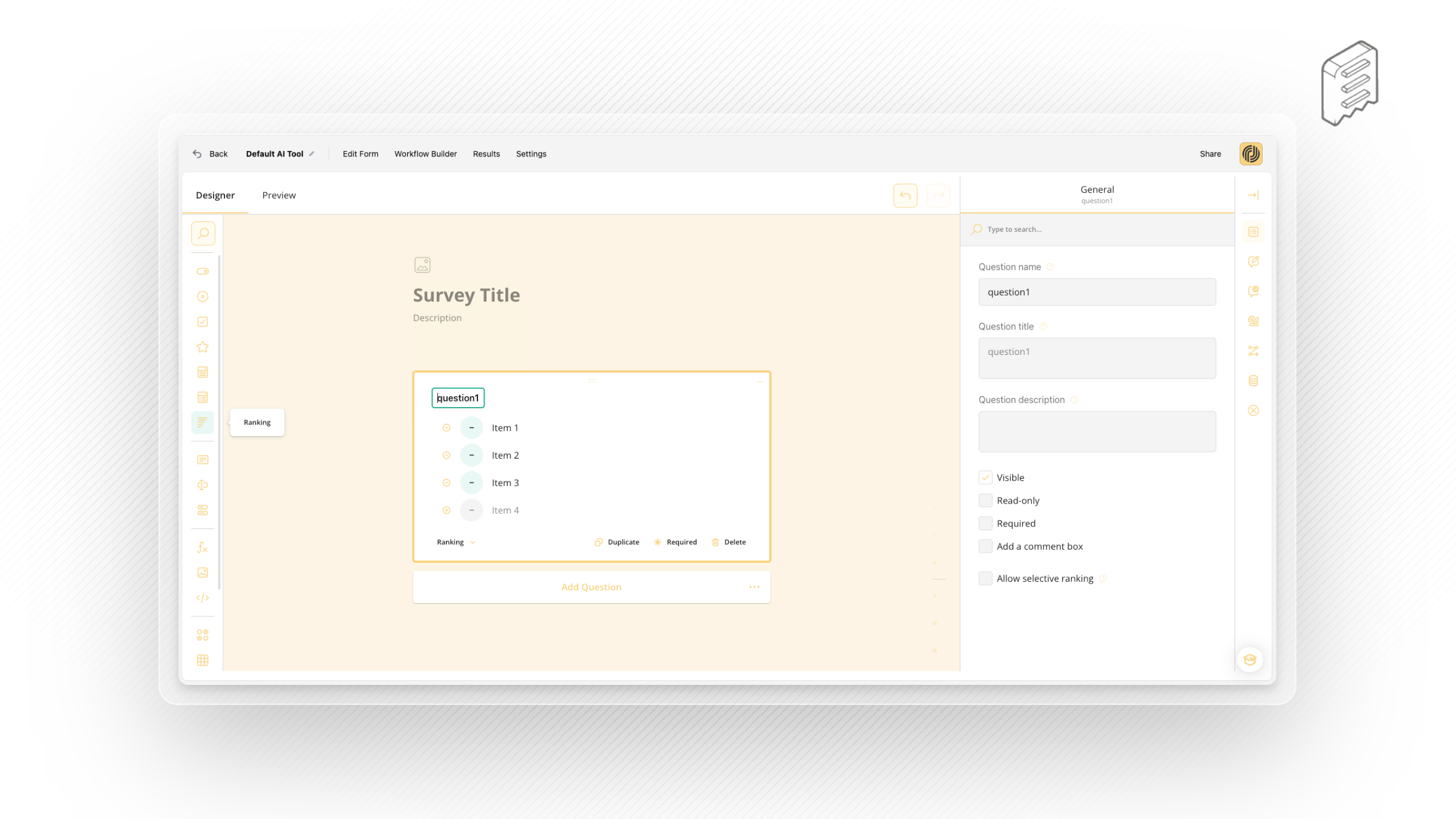
Ranking
Respondents drag and drop items from a list to rearrange them according to rank or preference. Use the Ranking type for questions in which respondents must set the order of items.
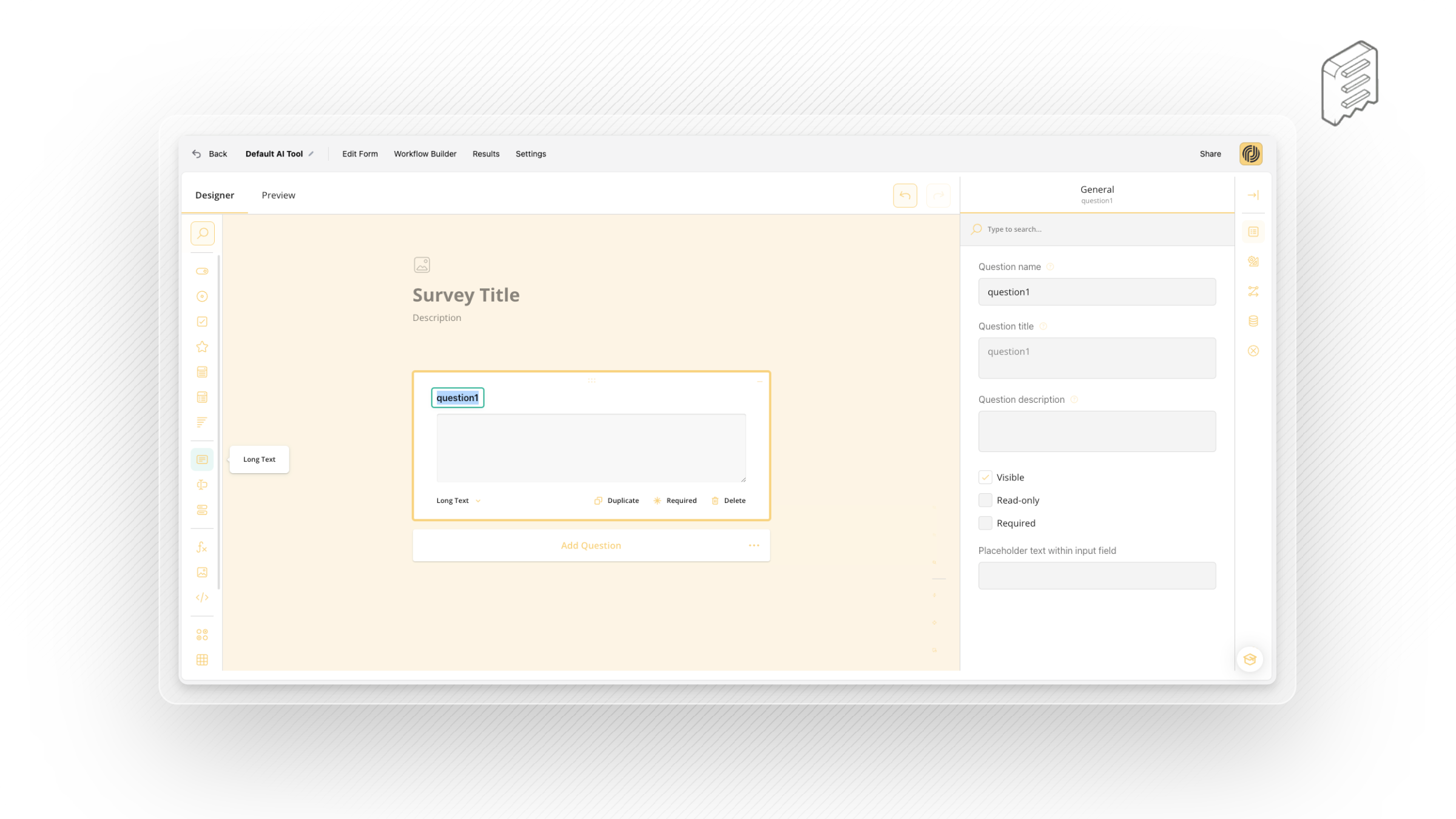
Long Text
Respondents enter their lengthy answer into a resizable multi-line text area. Use the Long Text type for open-ended questions that accept multi-line answers.
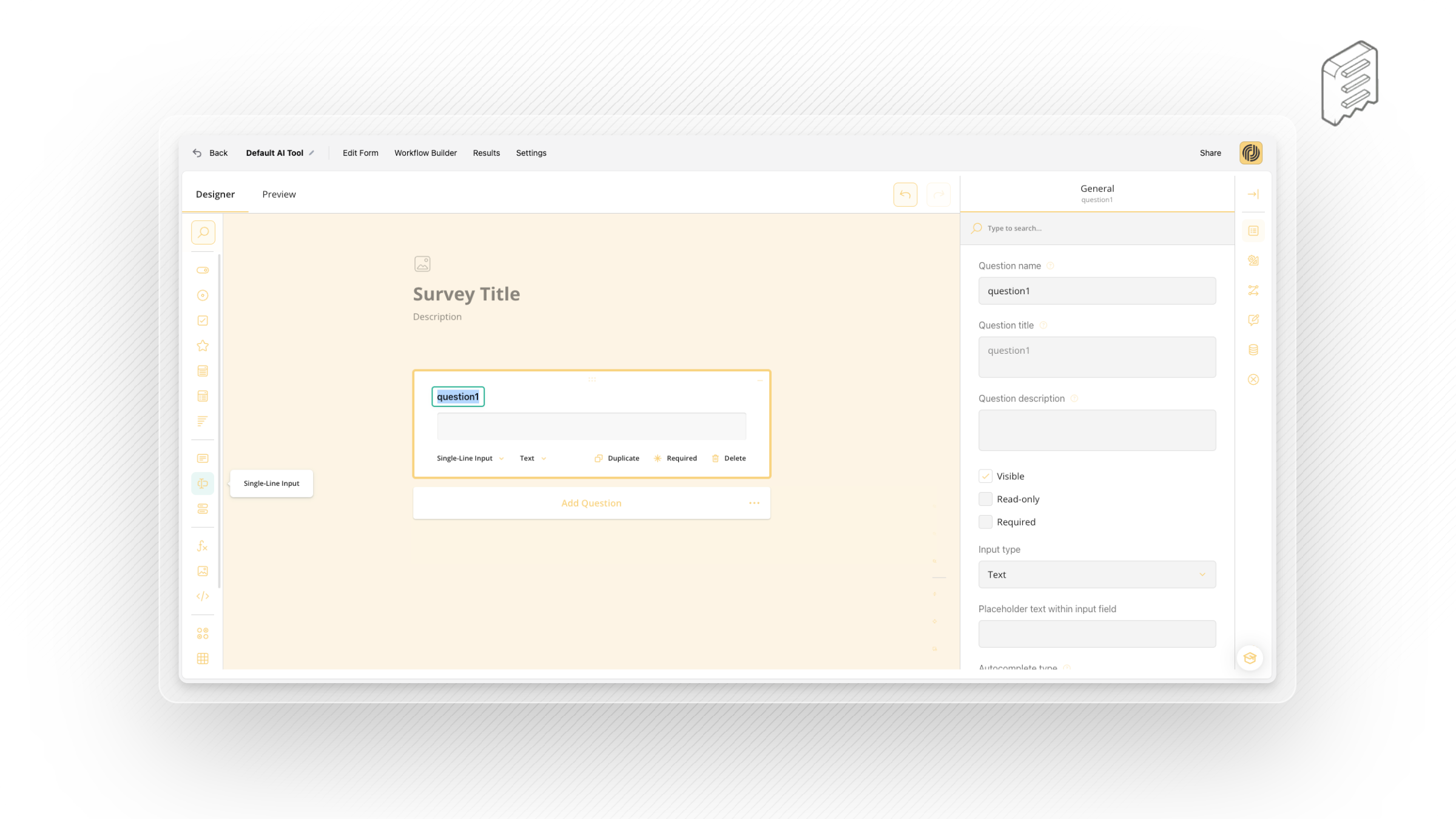
Single-Line Input
Respondents enter their textual, numeric, or date and time answers into a single-line editor. Use the Single-Line Input type for questions that require short answers.
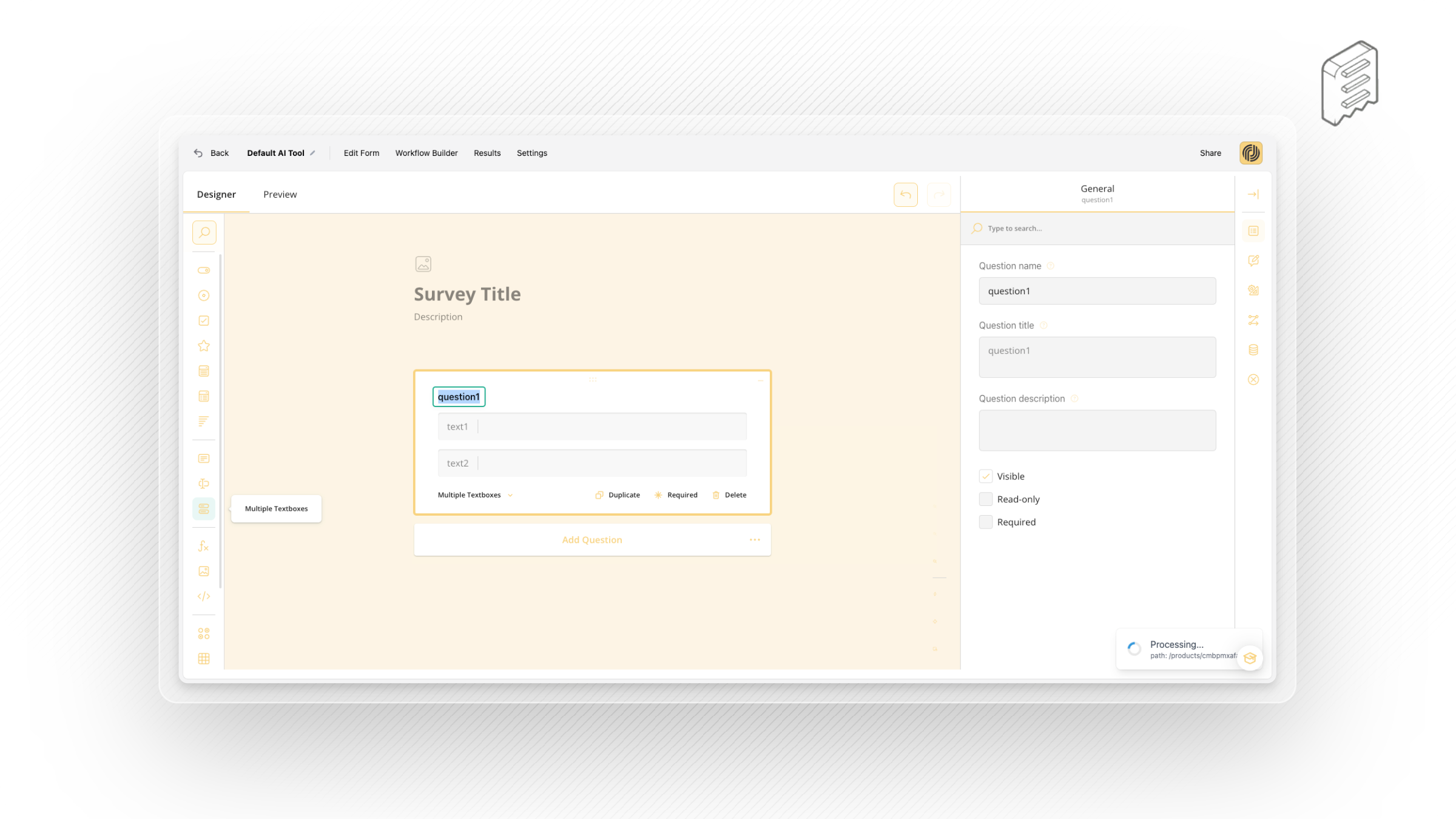
Multiple Textboxes
Respondents enter their answers into multiple single-line text editors. Use the Multiple Textboxes type for open-ended questions that require more than one short answer.
Image
Use the Image type to add an image or video to the form, which can be selected by your respondents. A value associated with the selection is then saved to the form results.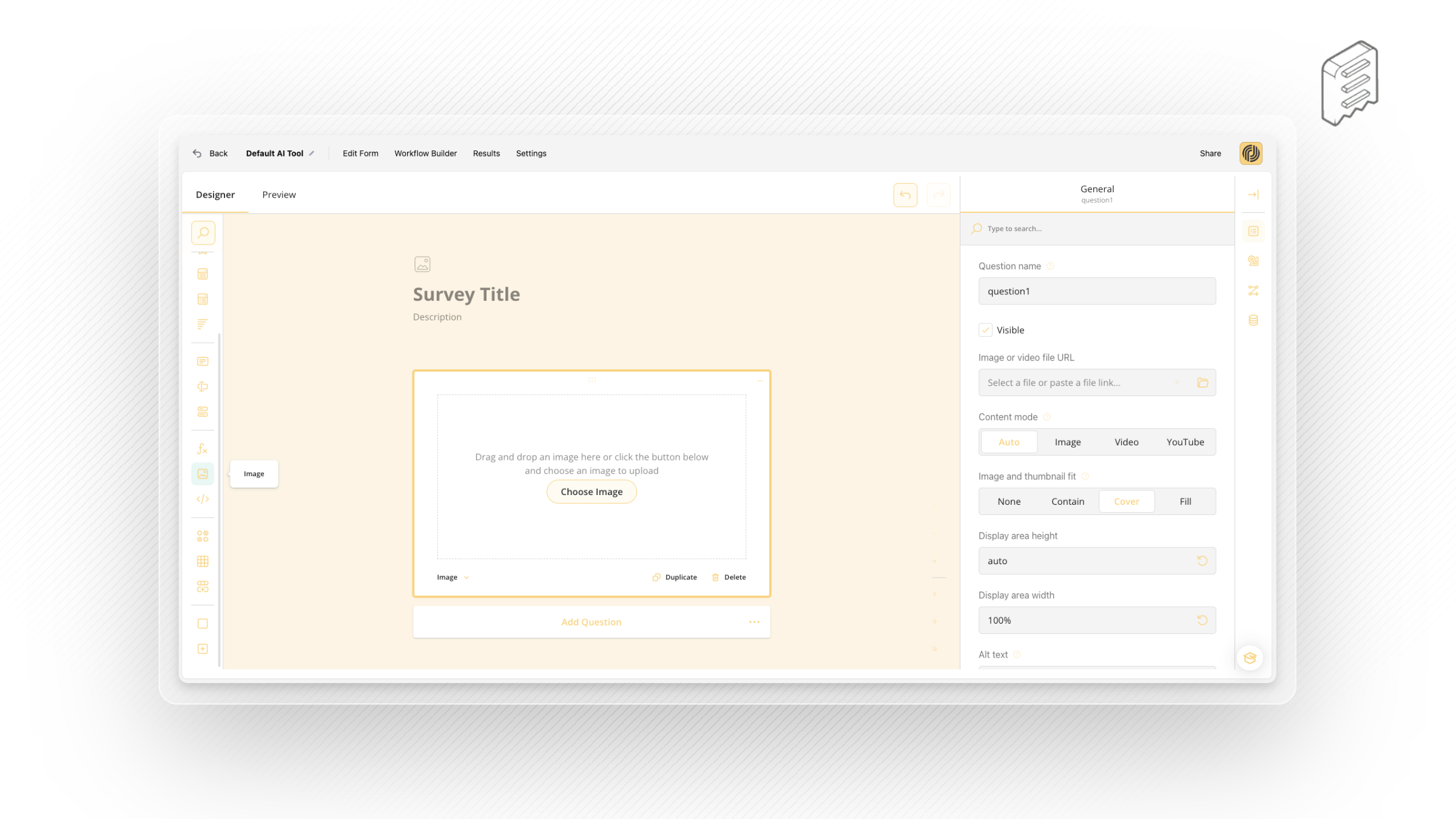
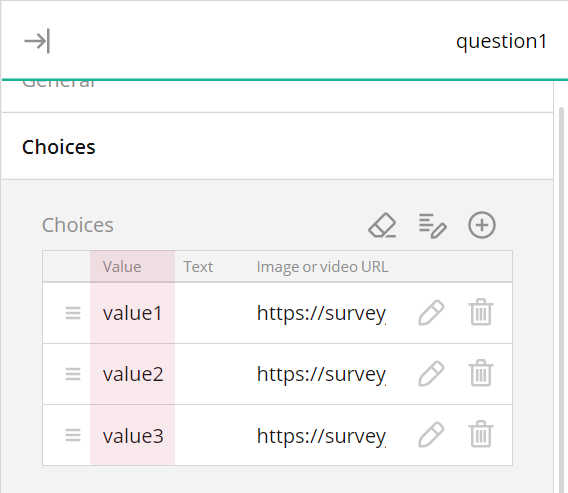
To associate values with images or videos:
Expand the choices category and enter the value in the choices table:
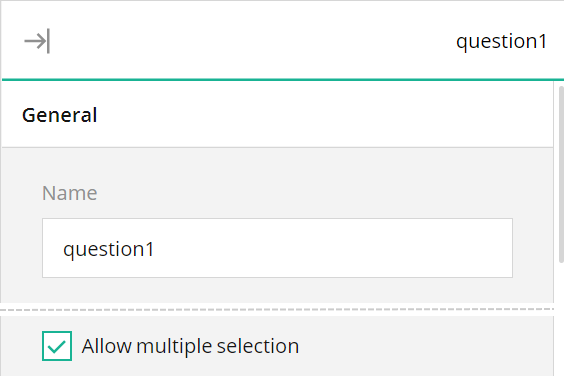
How to enable multiple image or video selection
- Expand the General category and select 'allow multiple selection.'
HTML
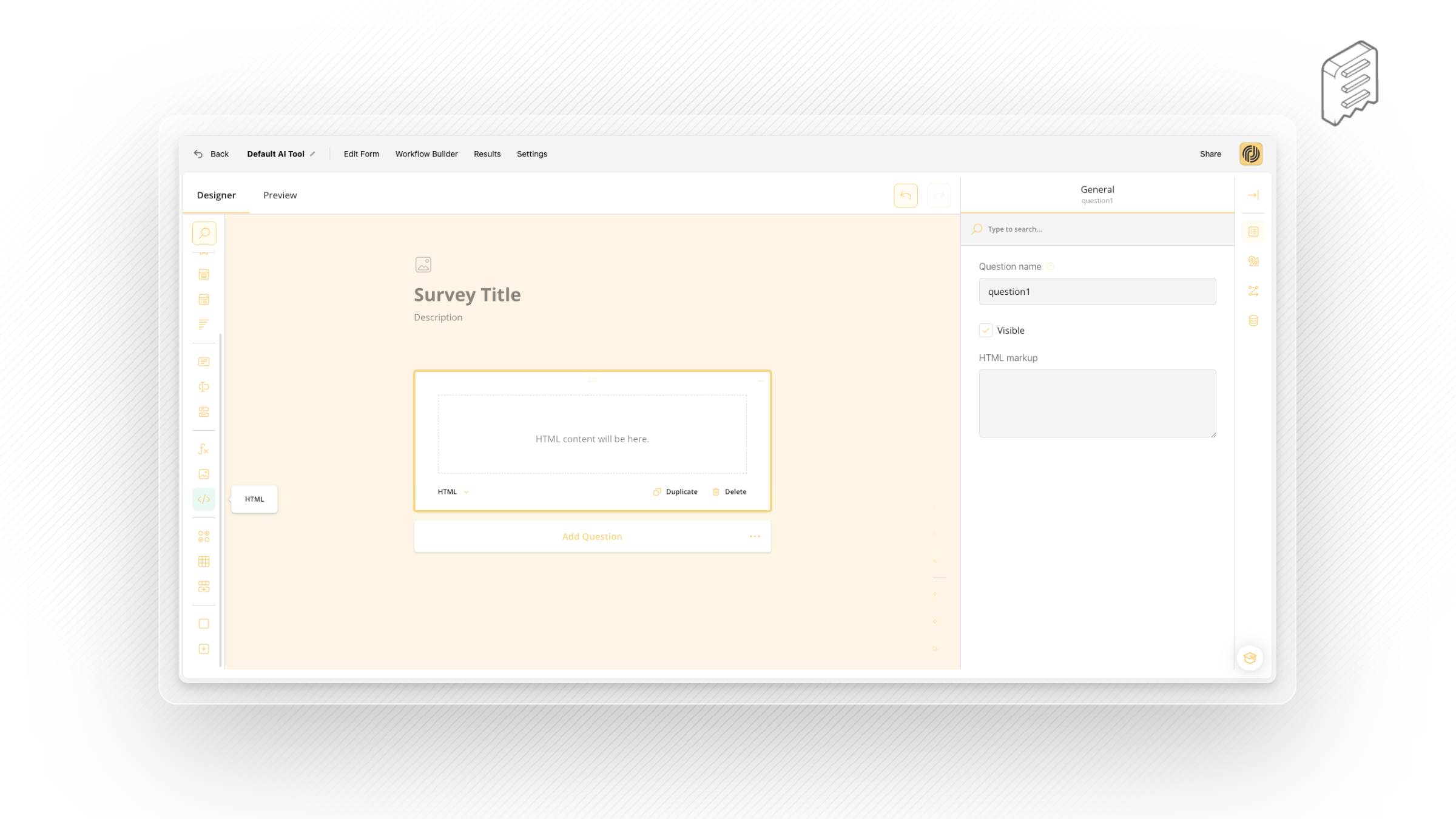
Use the HTML type to format text as needed, include links, and insert media or other custom elements into the survey. This type is used for presentation only and does not produce a value to be saved in the survey results. Be aware that HTML content can be vulnerable to security breaches. Ensure that the links you insert lead to trusted resources.
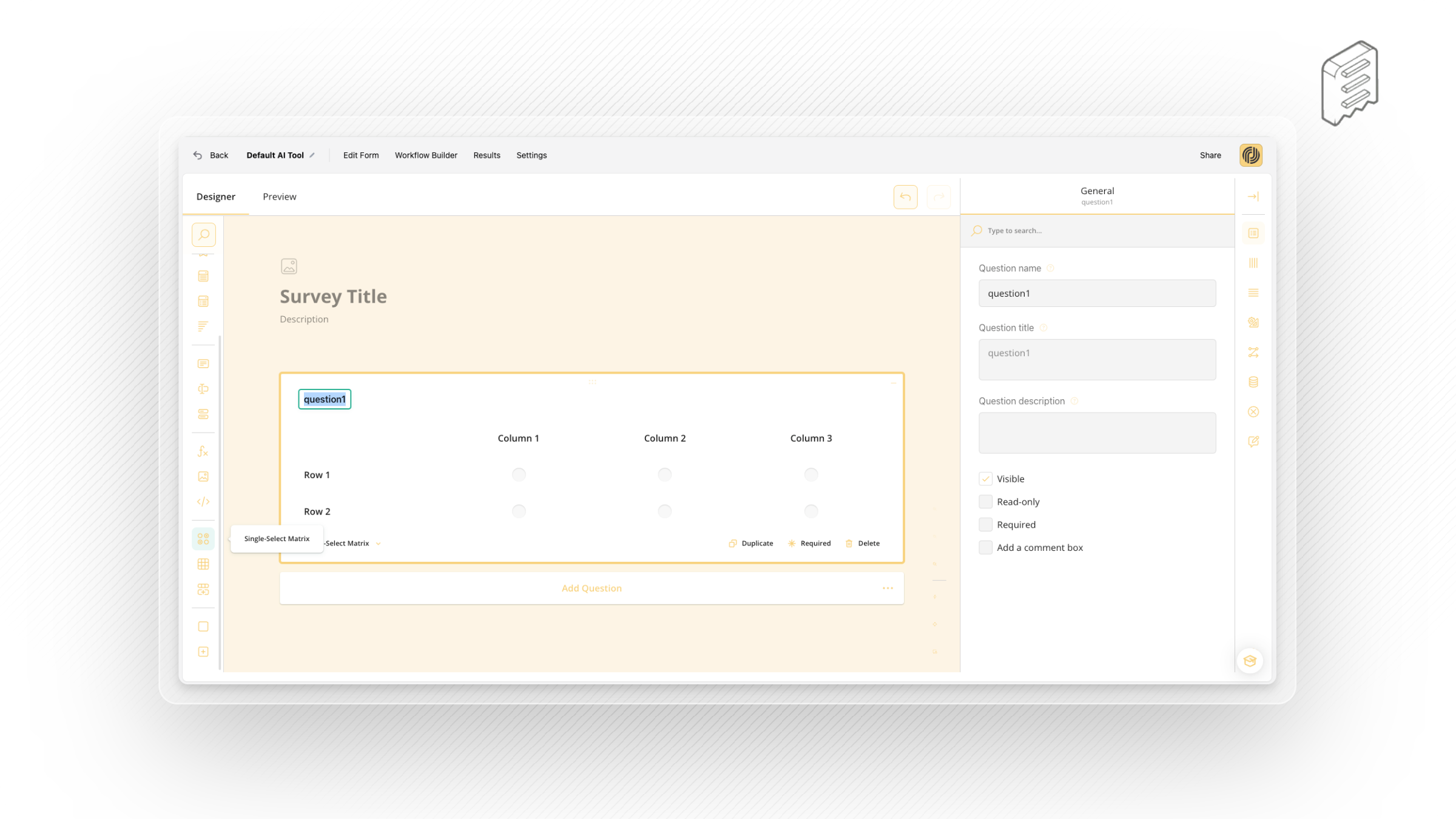
Single-Select Matrix
The Single-Select Matrix type displays radio buttons in rows and columns. Respondents can select only one radio button in each row.
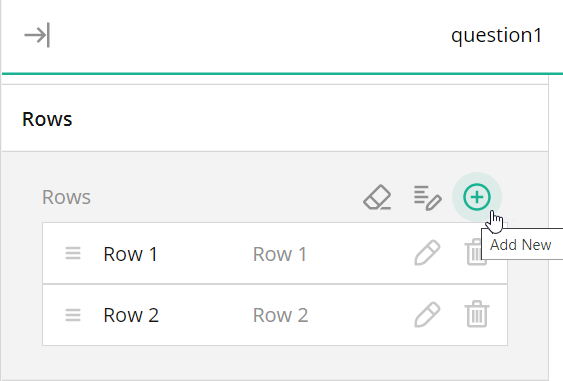
How to: Add new rows
Expand the Rows category and click Add New:
How to: Randomize rows
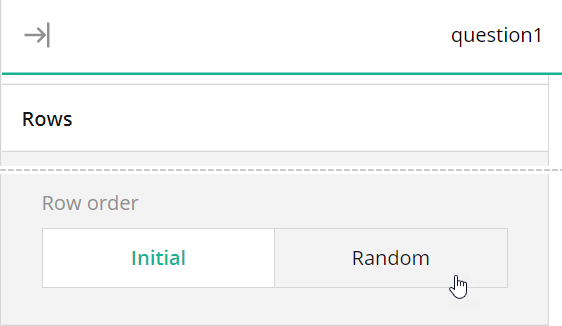
Expand the Rows category, find the Row order editor, and switch it to Random: