
Step 1: To embed your product you first need to copy the iframe embed code from the 'share' menu in the top-right.
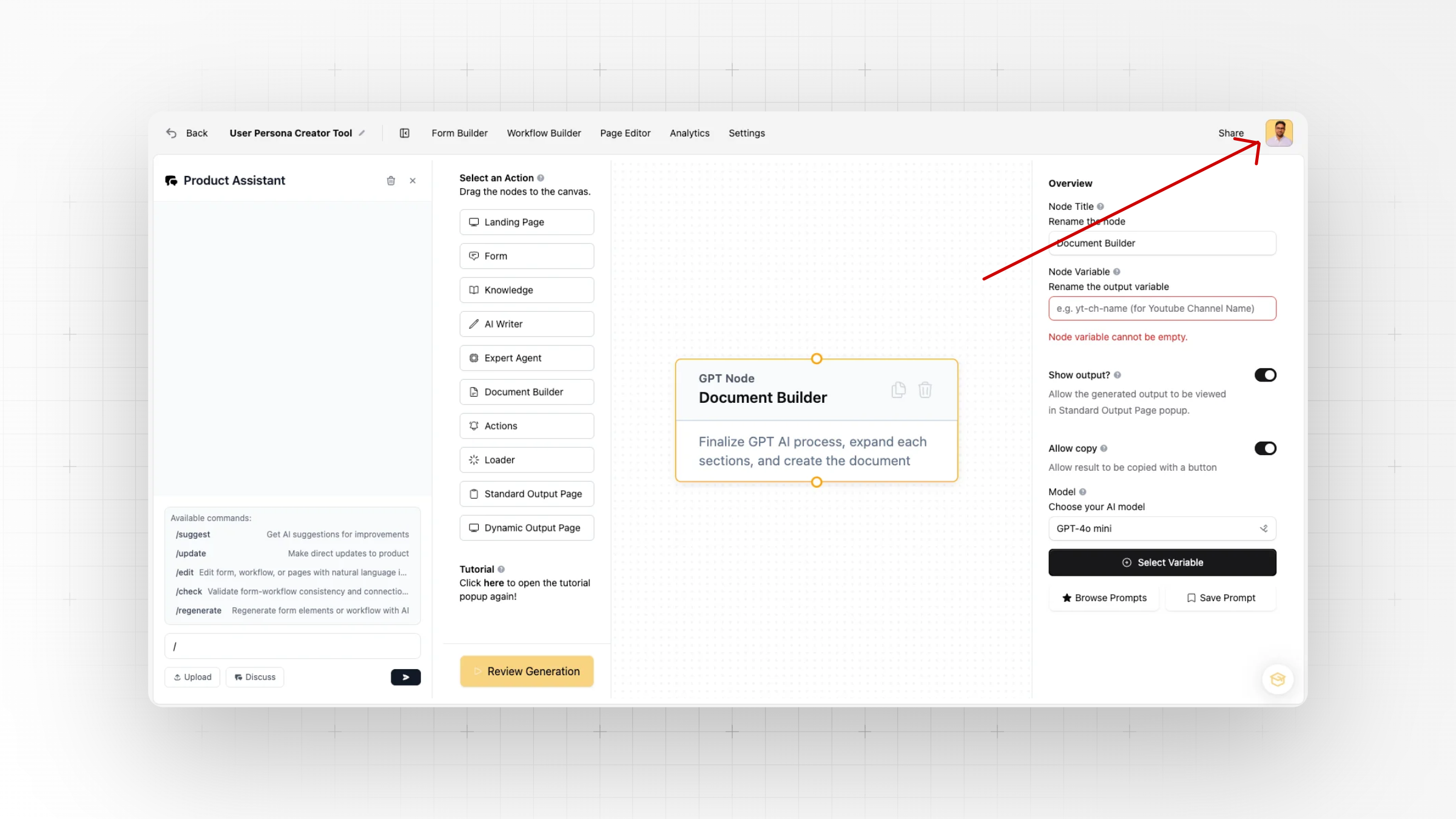
Step 2: Then you are presented with the iframe code: such as the following or similar
src="https://app.productised.ai/pages/cghbfh6jn007nnd6qjeld/form"
width="800"
height="600"
style="border: none; background: transparent;"
allowFullScreen>
</iframe>
Precautionary Note: BEFORE proceeding further, you must assign a landing page to the product by creating one in the workflow builder.
Step 3: To embed the form, copy the iFrame code to your site as is. To embed an entire PRODUCT remove 'form' from the iframe link (as bolded above)
Step 4. Ensure you have set publish product to ON under Settings > Deployment
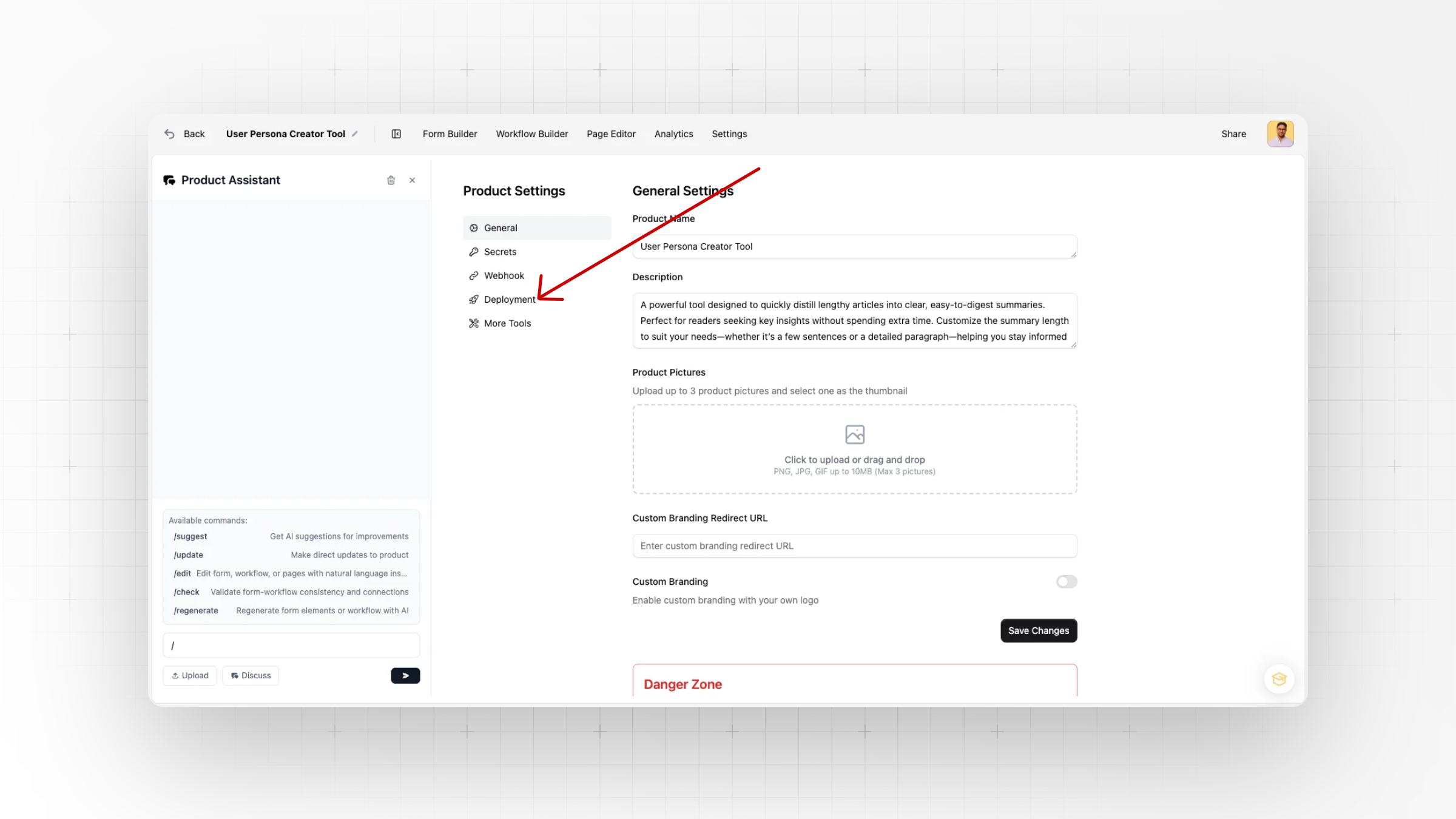
Step 5: Go to settings > deployment > 'allow domains for embedding' > then ADD the target URL you wish to embed the product or form on. Test the product on your page and that's it!